
Help topics
Online store (under construction)
What works today in the Online store: publishing your catalog, receiving orders with a receipt and handling them. And what comes later.
What it is for
The Online store publishes the products you already have in Inventory on the internet, with your brand and your theme. Your customer chooses, fills the cart, places the order and uploads a photo of the transfer receipt. You verify the payment and handle the order.
What works today
A store with its own link and QR code, with logo, banner, contact and social media.
Twelve themes, with color, font and home page sections to your taste, and a preview.
The published catalog: you choose which Inventory products are shown, at which price and in which category. When you publish, the product's photo goes to the store.
Stock: you can show sold-out products, sell on backorder or hide them. The customer can ask for an email when a sold-out product is back.
Cart and order: units are held for the time you set. The customer can get an email reminder if they leave products in the cart.
Delivery: pickup at the store and delivery by zones, with a flat rate and free delivery from an amount.
Orders: the customer pays by transfer and uploads the receipt. You see it in Orders. The customer gets an email at each step.
Before you start
Have your products created in Inventory, as goods that you sell.
Have an active warehouse: it is needed to open the store.
Add a transfer-type collection method (for example Yappy or ACH) and check Show when receiving. See Collection methods. Without it, the store says "This store has no payment method available yet."
The store appears in Sales only if your company has the plugin turned on.
Steps
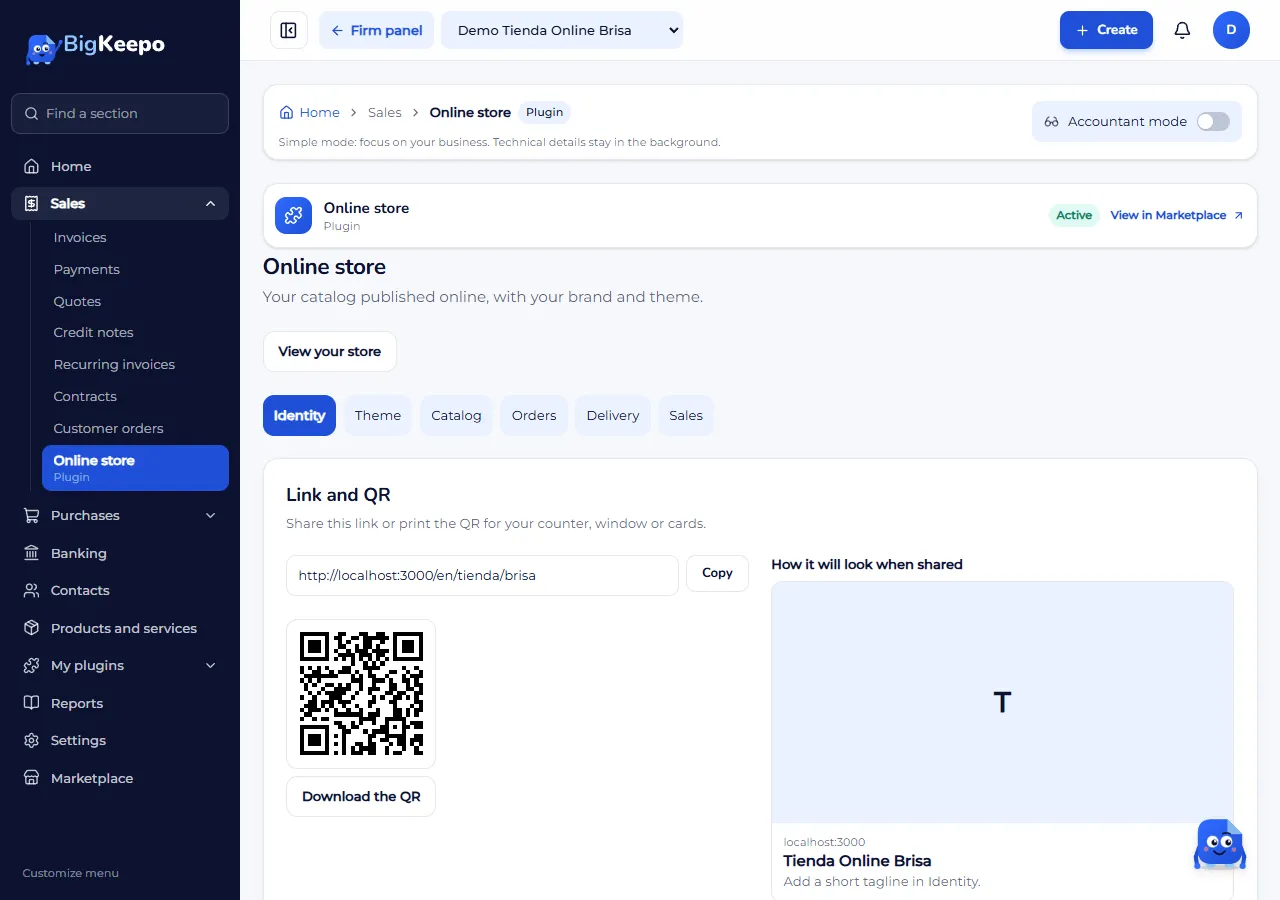
Open Sales › Online store. In Identity enter the Name and the Link and, if you want, the Short tagline, the Logo, the Banner, the contact and social media. Select Save. Save the name and the link first: without them the other tabs do not work. At the top you will see Link and QR, with Copy and Download the QR.
In Theme, choose one from the list and, if you want, change the Main color, the Font and the Home page sections. Look at the Preview in light and dark. Select Save. Changing the theme does not delete your content.
In Catalog, search for the product, enter the Store price (if you leave it empty it uses the sales price), choose the Category and select Publish. To take it off, select Remove. Store categories are created under New category with Add.
In Delivery, check Offer pickup at the store and enter the Pickup instructions, or check Offer home delivery and add your zones under Add a zone: Zone, Rate and Free from. Select Save and Save zone.
In Sales, choose the Warehouse it sells from and decide When there is no stock, What the customer sees about stock and Minutes cart units are held. Check whether Prices the customer sees include tax. Under Store status, choose Open to the public and save. With Draft only your team sees it; with Paused, no one. Now you can use View your store.
When a customer places an order, open Orders. If there are receipts waiting, a notice tells you. Filter by Status or search by number, name or email, and open the order.
Check the receipt under Receipts and, in Next step, enter the Bank reference and the Payment date, and select Verify the payment. Then use Mark as preparing, Ready for pickup or Mark as shipped. To close, select Deliver and invoice and confirm with Yes, deliver.
If you cannot handle the order and have not verified the payment yet, select Cancel the order, enter the Reason for canceling and confirm. The products are released and the customer gets the notice. An order whose payment is already verified is not canceled here.
Expected result
Your store has a link to share, your products show with your brand and orders arrive in Orders with the customer's receipt.
If something goes wrong
It says "Store accounting is not turned on for your company yet. Ask for it to be activated before verifying payments or delivering.": today store accounting only works in demo companies. In a real company you can receive orders and cancel those whose payment is not verified yet, but not verify the payment or deliver. It will be enabled once your accountant validates the entries.
It says "To open the store, choose the warehouse it sells from.": choose a warehouse in Sales and save.
It says "You reached your plan limit of published products.": remove a product from the catalog or check your plan in Your trial and your plan.
The catalog says "There are no inventory products for sale. Create them in Inventory.": create the products in Inventory as goods that you sell and that are active.
It says "First save your store name and link.": go back to Identity, complete the Name and the Link and save.
It says "The image must be a PNG, JPG or WEBP up to 2 MB.": reduce the image or choose another.
The order changed status: reload the page and try again.
Coming soon
This is not built yet, and there are no dates:
Online card payment. Today the customer pays by transfer and uploads the receipt.
Payment on pickup and cash on delivery.
A screen to create discount codes.
Store accounting in real companies.
Selling the Online store from the Marketplace.
Related articles
Was this helpful?