
Help topics
Record a vendor bill and its payment
Copy the bill your vendor sent you, approve it so it counts in your reports and record the payment when you pay it.
What it is for
A vendor bill is what you owe someone who sold to you. First you copy it as a draft, which does not affect your books. When you approve it, it counts in your reports and becomes Unpaid. When you pay it, you record the payment and the balance goes down.
Before you start
Have the vendor saved in Contacts and the bill at hand: its number, its date and its lines. If you are going to buy inventory products, first see Control your stock.
Steps
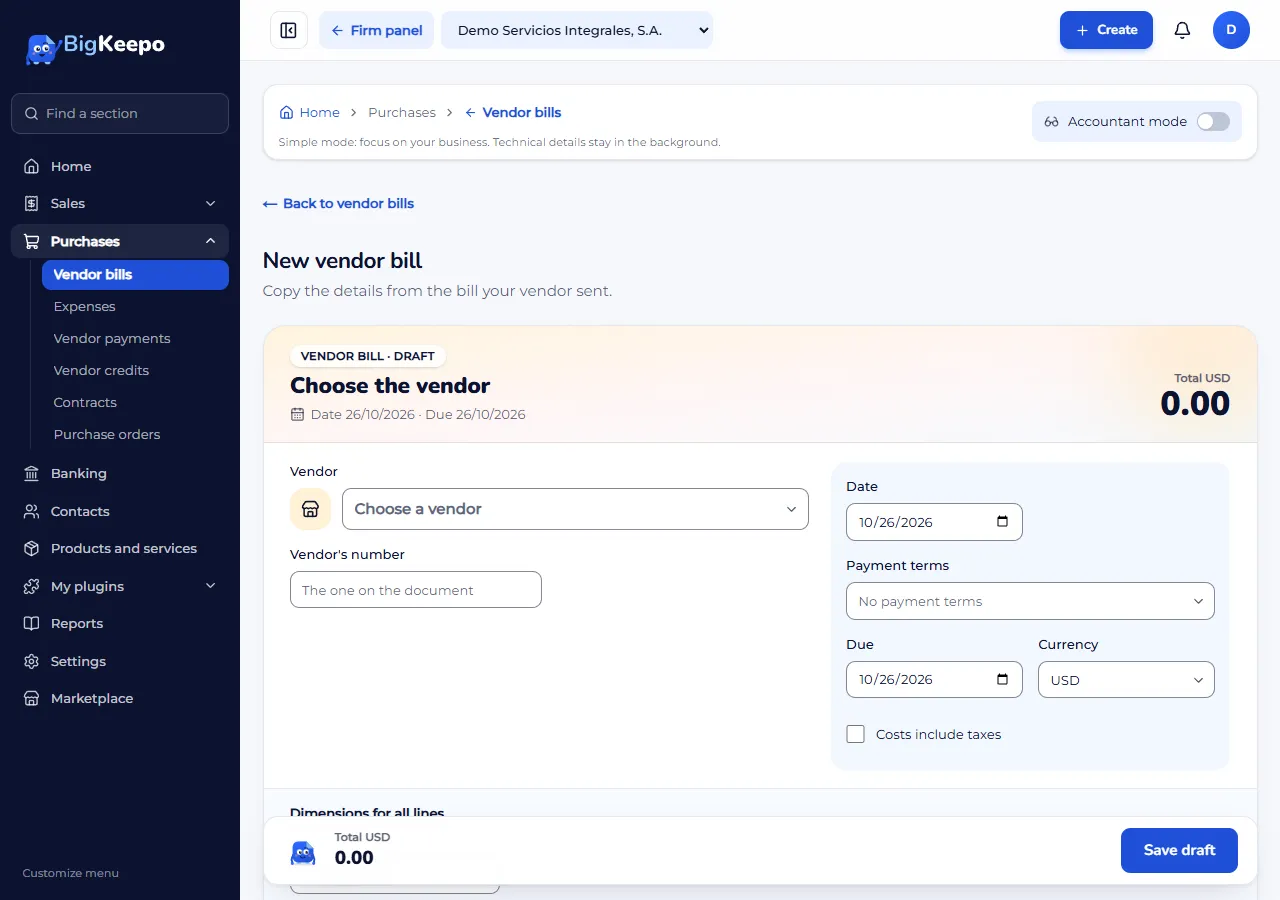
Open Purchases › Vendor bills and select New vendor bill.
In Vendor, open the Choose a vendor list and search for it. In Vendor's number enter the one on the document.
Check the Date. If you choose Payment terms, Due is worked out for you; otherwise enter the date. Change the Currency if the bill comes in another one. Check Costs include taxes if the prices on the bill already include the tax.
On each line choose the product, or type What you bought if you do not have one. Enter the Quantity, the Cost and the Tax. To add another line, select Add line. With Accountant mode on you also choose the Expense or asset account.
Check the totals at the bottom and, if you want, write an Internal note: the vendor does not see it. Select Save draft.
On the draft, select Approve and confirm with Approve and post. It gets its number and becomes Unpaid.
When you pay it, open the bill and select Record payment. The vendor, the bill and the amount are already filled in.
Check the Date. In How did you pay? choose the payment method. If it is not in the list, choose Another way (choose by hand) and set Paid from and Payment method. If you pay less, change the Amount. Enter a Reference if it helps (the transfer or check number).
Select Record payment.
Expected result
The bill becomes Paid, or Partially paid if you paid less. Balance due goes down and the payment appears in Payments and credits. What you owe all your vendors is on the What you need to pay card in Reports; see Accounting reports and the auditor package.
If something goes wrong
You made a mistake on a draft: select Edit, fix it and save. To remove it, select Discard and confirm with Discard draft.
You made a mistake on an approved bill: select Void, choose the Void date and enter the Reason. If it says «It has payments or credits applied: undo them first», open the payment in Vendor payments and void it first.
You want to reduce part of what you owe: use Credit note on the bill.
It says «The month of that date is closed»: use a date in an open month. See Close a month and a fiscal year.
It says «Other currencies come with multi-currency»: that currency needs the Business plan. See Your plan and your billing.
It says your plan does not include purchases: see Your plan and your billing.
Related articles
Was this helpful?