
Help topics
Automatic rules
Say once "when this happens, do that" and BigKeepo moves a stage, assigns, notifies or creates tasks for you.
What it is for
A rule says: When something happens, If a condition is met, Then BigKeepo does one or more actions. For example: when an opportunity enters Quoted, create the task "Call the customer" for its owner.
Before you start
Only the owner and administrators build rules.
Each rule belongs to a CRM pipeline or to a board. If you want to use fields in the rule, create them first as Custom fields of the pipeline or board.
The rule runs with the permissions of the person who builds it.
Steps
For a CRM pipeline, open My plugins › CRM, click the Settings tab and, on your pipeline, open Automatic rules. For a board, open My plugins › Boards, go into the board and click Settings; the Rules card is at the bottom.
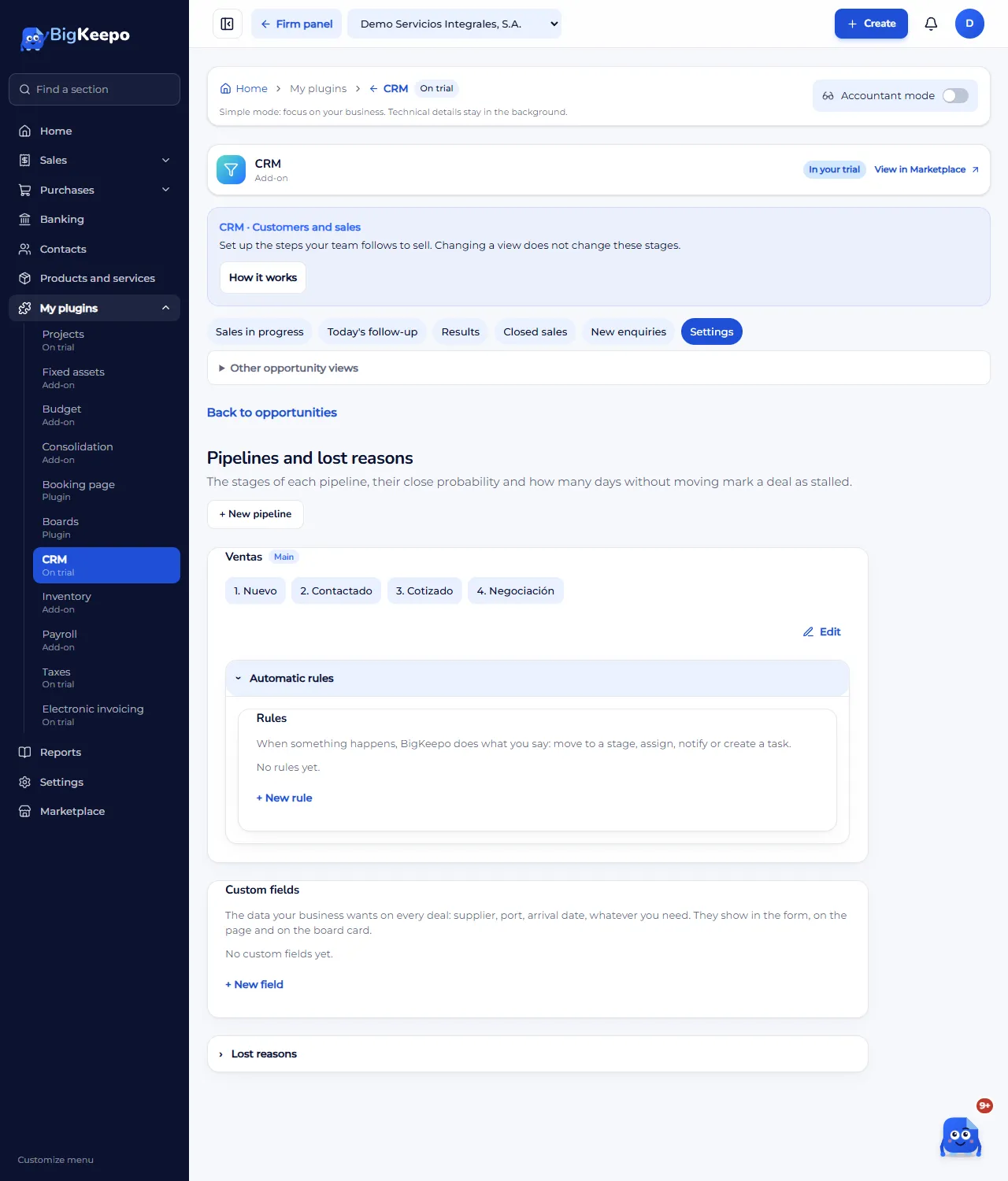
Click New rule. Write the Rule name.
Under When, choose what happens: A row is created, It enters a stage, A field changes or A date is due. Depending on your choice, set the Stage, the Field and its Condition, or the Days before (0 is the due date itself).
Under If, add a condition if needed with Add condition: A field, Is in the stage or The owner is. You can leave No condition.
Under Then, choose the action: Move to the stage, Assign to, Set a value, Create a task, Leave a comment or Notify. Fill in what each one asks for, for example the Task title or the Text. Use Add action to add another.
Click Create rule.
Expected result
The rule appears written as a sentence, for example "When it enters Quoted: create the task Call the customer.". From then on BigKeepo applies it by itself, every time what you described happens.
On the page of the row or opportunity, the Rules applied card shows which rule ran, when, and whether it ended done, failed or skipped, with the reason.
Change, turn off or remove a rule
Change opens the rule for editing; save it with Save rule.
Turn off stops it without deleting it: it is marked Off. Turn on activates it again.
Remove takes it away. On the pages, its past runs appear as Removed rule.
If something goes wrong
You do not see New rule: your role does not build rules ("Only the owner and administrators build rules") or the Boards plugin is missing.
The rule shows as skipped: read the reason under Rules applied. For example "the condition was not met" or "it had already run". A rule does not repeat on the same event.
It was skipped because of "too many chained rules" or "it repeated in a chain": one rule triggers another. Check that they do not call each other.
You chose Notify and nobody received it: with The owner, the row needs an owner. Assign one or choose A person.
Related articles
Was this helpful?