
Help topics
Manage your rentals
Add your properties, connect each channel's calendar, note direct bookings and blocks, and close each stay when the guest checks out.
What it is for
It brings your properties and their bookings, from each channel and direct ones, into a single calendar. This way you see the occupied dates, avoid overlaps and know when each guest checks out.
Before you start
Have at hand the iCal link each channel gives you (the export calendar option in Airbnb, Booking.com or another). If you want to invoice the stay, review your chart of accounts.
Steps
Open My plugins › Rental calendar. At the top there are tabs: Calendar, Cleanings, Guests, Owners, Reports and Properties.
Open Properties. At the bottom, expand New property and enter the Name (for example, Apartment 3B), the Type, the Address, the Bedrooms, the Maximum guests, the Check-in time, the Check-out time, the Nightly rate and the Cleaning fee. Under Who cleans, choose who gets each cleaning. If you manage it for someone else, choose the Owner and enter their Commission (%); if it is yours, leave Owned by the company. Select Add property.
On the property's card, under Channels, expand Add channel. Choose the Channel, enter the Name and paste the Channel iCal link. Select Add channel. To bring in the bookings right away, select Read now; below it you see when it was last read. After that, BigKeepo reads it again on its own.
So that each channel sees the occupied days here, expand This property's calendar link and paste it in the channel, in its import calendar option.
Go back to Calendar. Each property has its row and each booking its color by channel: Booking.com, Airbnb, Direct or Blocked. With List by property and Calendar you choose how to see them. If two bookings overlap, they are marked in red.
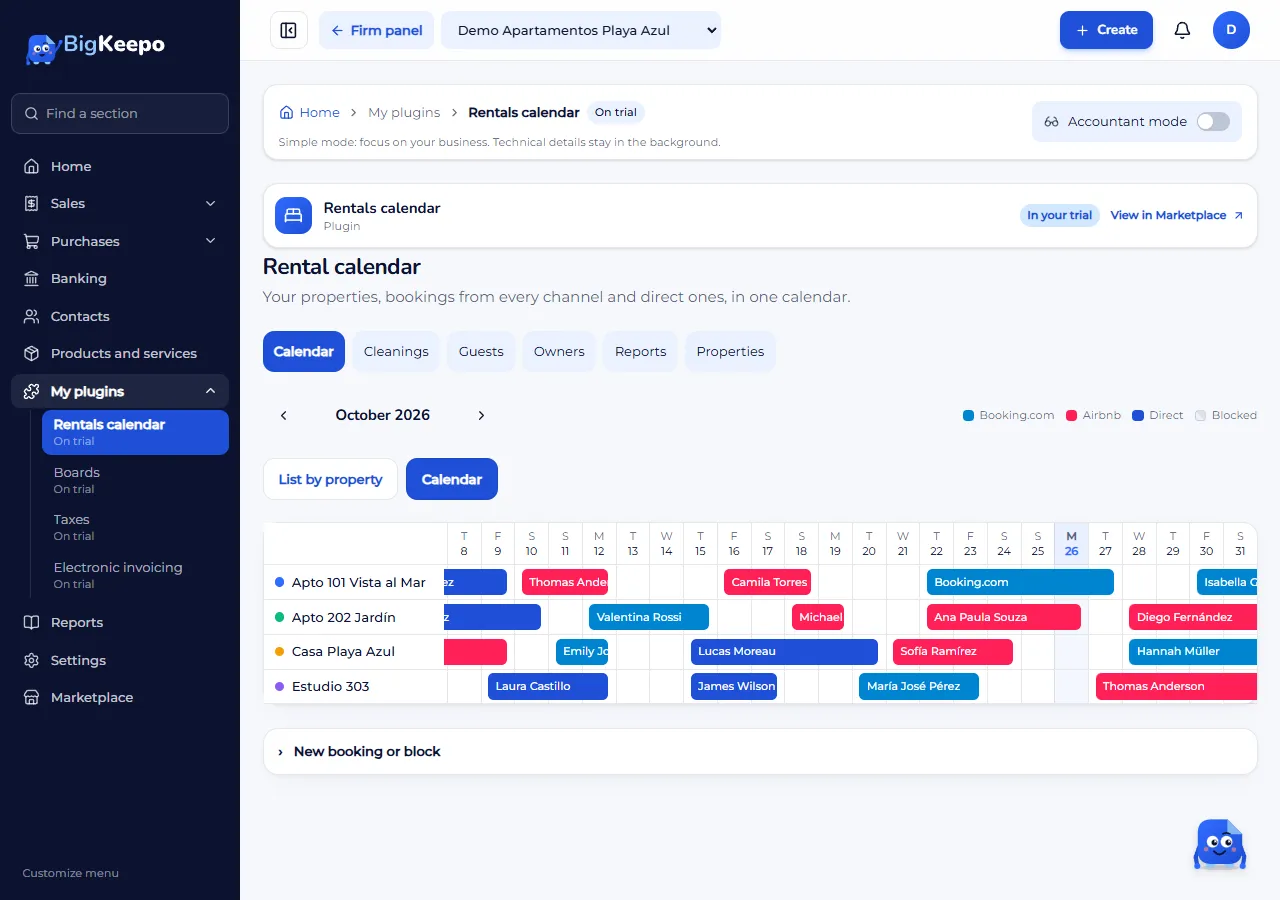
For a direct booking or to close days, open New booking or block. Choose the Property, under Type mark Booking or Block, and enter the Check-in and the Check-out. For a booking, also enter the Guest, with their Email or Phone so they are saved in Contacts; you can note the Guests and the Amount. Select Save.
When the stay day arrives, select the booking on the calendar. When the guest leaves, select Checked out: it ends the stay and prepares its draft invoice, which you review in Open the draft invoice and issue. That check-out also leaves a cleaning for that day in Cleanings.
Expected result
Your properties and bookings are in a single calendar, without overlaps. Each check-out leaves its cleaning and its draft invoice. In Owners and Reports you see estimates based on the bookings; they do not confirm collections or posted income.
If something goes wrong
It says "The iCal link must start with https and point to a public site": copy the link again from the channel.
The channel says "The link does not return an iCal calendar": the link is not the export calendar one. Copy it again.
The channel says "The channel answered with code…": check that the link is still valid in the channel and select Read now.
It says "Those dates overlap another booking or block": choose other dates or remove the block.
It says "That booking comes from a channel. Cancel it in that channel": bookings from a channel are changed or canceled there. For a direct one, use Cancel the booking; for a block, Remove the block.
It says "To set a commission, choose the owner": choose the property's Owner or clear the commission.
It says "The guest has not arrived yet": Checked out can be selected from the check-in day.
It says "The stay ended. No invoice was prepared because the guest has no email or phone": the stay was closed without an invoice. In future bookings, enter the guest's Email or Phone before selecting Checked out.
The calendar says "No active properties yet": select Add a property.
Related articles
Was this helpful?