
Help topics
Document templates
Choose the design of your invoices, quotes and other documents, with your logo and colors, and save every change as a version.
What it is for
Each type of document (invoices, quotes, receipts and more) has its own design. You choose a model, adjust it with your logo and colors, and BigKeepo uses it on those documents. Every change is saved as a version.
Before you start
Your logo comes from your company profile. If you do not have it yet, upload it under Settings › Company, in the How your app looks section. Changing templates is allowed for the role that administers the company.
Steps
Open Settings › Document templates.
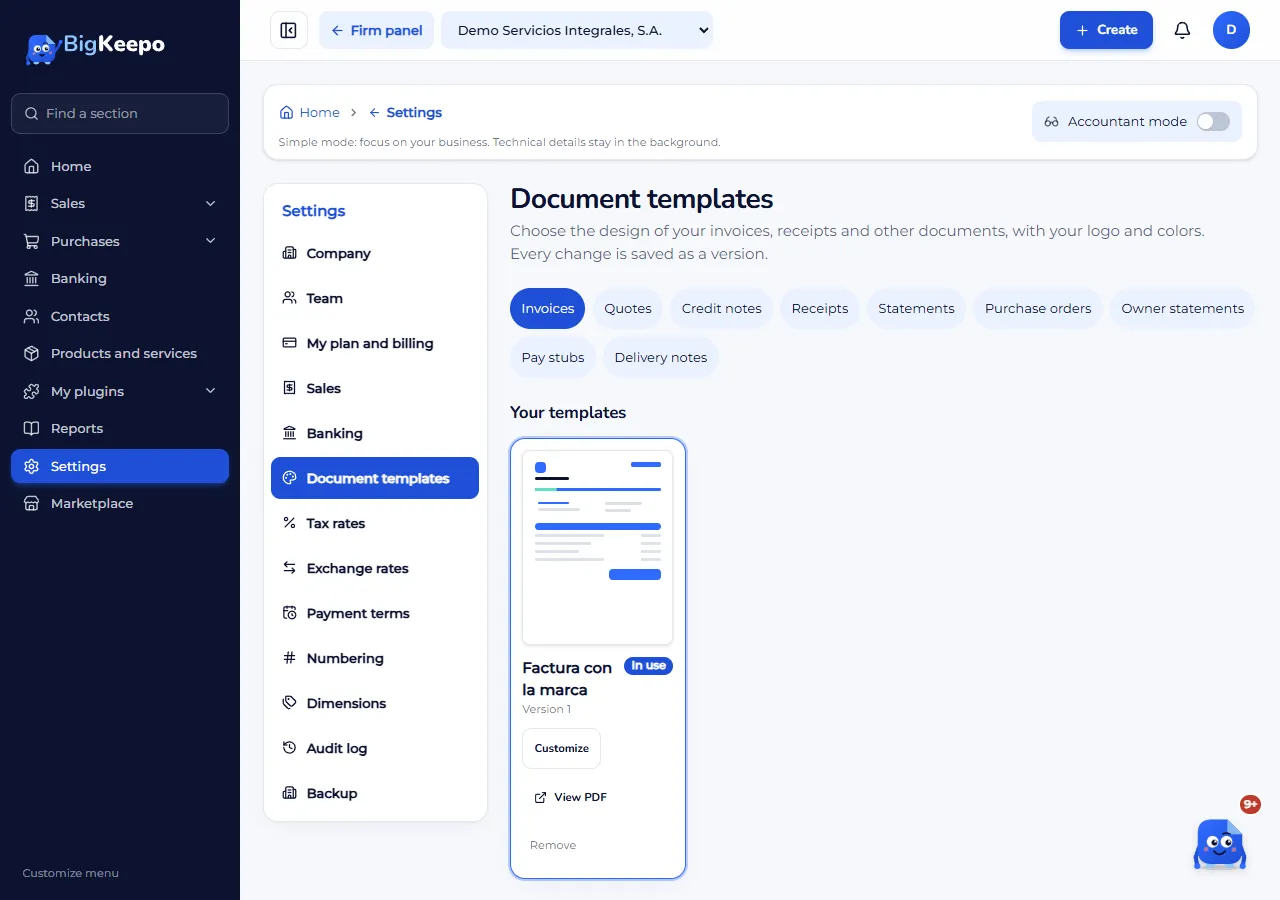
At the top, choose the document type: Invoices, Quotes, Credit notes, Receipts, Statements, Purchase orders, Owner statements, Pay stubs or Delivery notes. On a phone it is the Document type list.
Under Your templates you see your own; the one in use carries the In use mark. If you have none yet, you will see the model used today.
Further down, under Models, choose a style and its color. Tap the thumbnail to see the sample PDF with your company's data. Use Open in a new tab if you want it larger.
Click Start with this one. Customize template opens.
Write a Name. Under Design and colors adjust the Layout, the Font, the Main color, the Accent color, the Logo position and the Logo size.
Under What is shown, tick what you want to see: Logo, Tax ID, How to pay, Page number and others.
Under Columns, tick the ones that show and change their name and order. For invoices and quotes you also choose the Table layout.
Under Document header and footer, write the Text at the top and the Footer text, for example a slogan or your legal details.
On the right, look at the Preview. Leave Use it for this document type ticked and click Save version.
Expected result
You will see "Version saved." and your template with the In use mark. Documents of that type use your design.
Change, test or go back
Customize opens the template to adjust it. Each Save version creates a new version.
View PDF shows a sample document.
Use this one puts another of your templates in use.
Under Versions, click Go back to this one to return to an earlier version.
Remove takes the template away and the standard model is used.
If something goes wrong
It says "Your role cannot change templates": ask whoever administers the company to do it, or to change your role.
The Start with this one button does not appear: your role can only look at the models.
The logo does not show on the PDF: check that Logo is ticked under What is shown. On documents the logo shows if it is a PNG or JPG; change it under Settings › Company.
It says "Type a name": the template needs a Name to be saved.
Related articles
Was this helpful?