
Help topics
Run your payroll
Create the pay run for a period, calculate it, review each person's pay stub, approve it and record the net payment.
What it is for
A pay run calculates what your team is paid in a period: salaries, deductions and the company's contributions. You prepare it as a draft, calculate it, review it and approve it. When you approve it, it is posted and no longer changes. The net payment is recorded afterwards.
Before you start
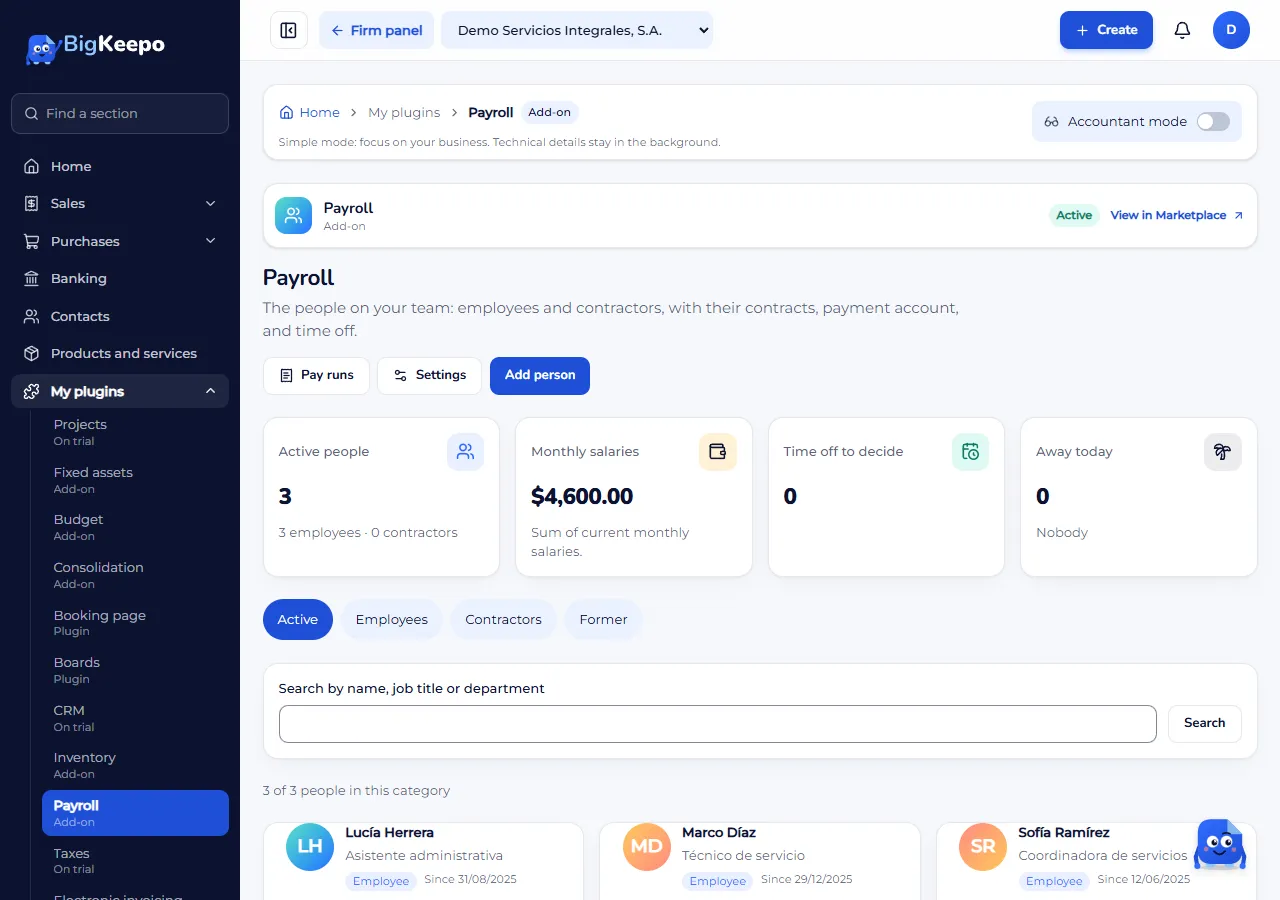
Register your people in Payroll, with Add person. In First contract (Add the contract now) choose the Pay frequency and the Payroll structure: the pay items calculated for that person. Without a current contract, the person is not calculated.
Open Settings (at the top of Payroll). If your country has a payroll package, Country payroll package appears: select Apply country package. It creates what is missing: accounts, agencies, rates, the tax table, pay items and structures. Today there is a package for Panama. Review those rates with your advisor.
On the Agencies tab, choose the Wages payable account and select Save. That is where each pay run's net stays until it is paid. The country package already chooses it.
Steps
Open My plugins › Payroll and select Pay runs.
Open New pay run. Choose the Schedule (Semimonthly, Monthly, Biweekly or Weekly). Check From, To and Pay date: BigKeepo proposes today's half of the month. In Type leave Regular. Enter a Note if you want and select Create pay run. Only people whose contract has that pay frequency are included.
If this period has overtime, days or bonuses, open Add an input under Period inputs. Choose the Person and the Pay item, enter the Quantity or the Amount and select Save input. Inputs count when you calculate or recalculate.
Select Calculate. At the top you see People, Gross pay, Net pay and Employer contributions, and below a table with each person's Gross, Deductions, Net and Employer cost.
Review the figures. Select a person's name to see their pay stub and, if you want, Download PDF. If someone appears under People not calculated, the reason is next to them: fix it and select Recalculate.
When you are happy with it, select Approve (with Accountant mode on, Approve and post). The pay run becomes Approved. If your role can see accounting, View the entry shows its entry.
Record the payment. In Pay the net, check the Payment date, choose Paid from (your bank account), enter a Reference if it helps and select Record the payment. The pay run becomes Paid.
Expected result
The pay run is Paid, with a PDF pay stub for each person. Under Payments on the pay run you see the net payment. What was withheld and contributed stays in each agency's name, in What is owed to each agency, inside Pay runs. To pay an agency, select Record a payment on its row.
If something goes wrong
It says «These pay items are missing an account»: open Settings, the Pay items tab, complete the account of the items it names and select Recalculate.
It says «Choose the wages payable account in Settings»: choose it in Settings, on the Agencies tab.
A person was not calculated: it may say «Their contract has no payroll structure», «There is no current contract on the pay date» or «Parameter … has no value». Fix it on their record or in Settings and select Recalculate.
You approved with a mistake: an approved pay run does not change. Correct the mistake in the next pay run.
You paid by mistake: under Payments on the pay run, select Void this payment.
It says «The accounting period of the pay date is closed»: use a date in an open month. See Close a month and a fiscal year.
You do not see the Approve or Record the payment button: your role does not have that permission. Ask the owner or the administrator.
You want to throw away a pay run: select Discard while it is a draft or calculated.
It says your plan does not include Payroll: request it from Marketplace.
Related articles
Was this helpful?