
Help topics
Send a document to sign
Upload a PDF, say who signs and where, send it by email and follow its progress until everyone has signed.
What it is for
You send a PDF by email and each person signs it from their phone or computer, without creating an account. Each signature keeps its code, its fingerprint and its history.
Before you start
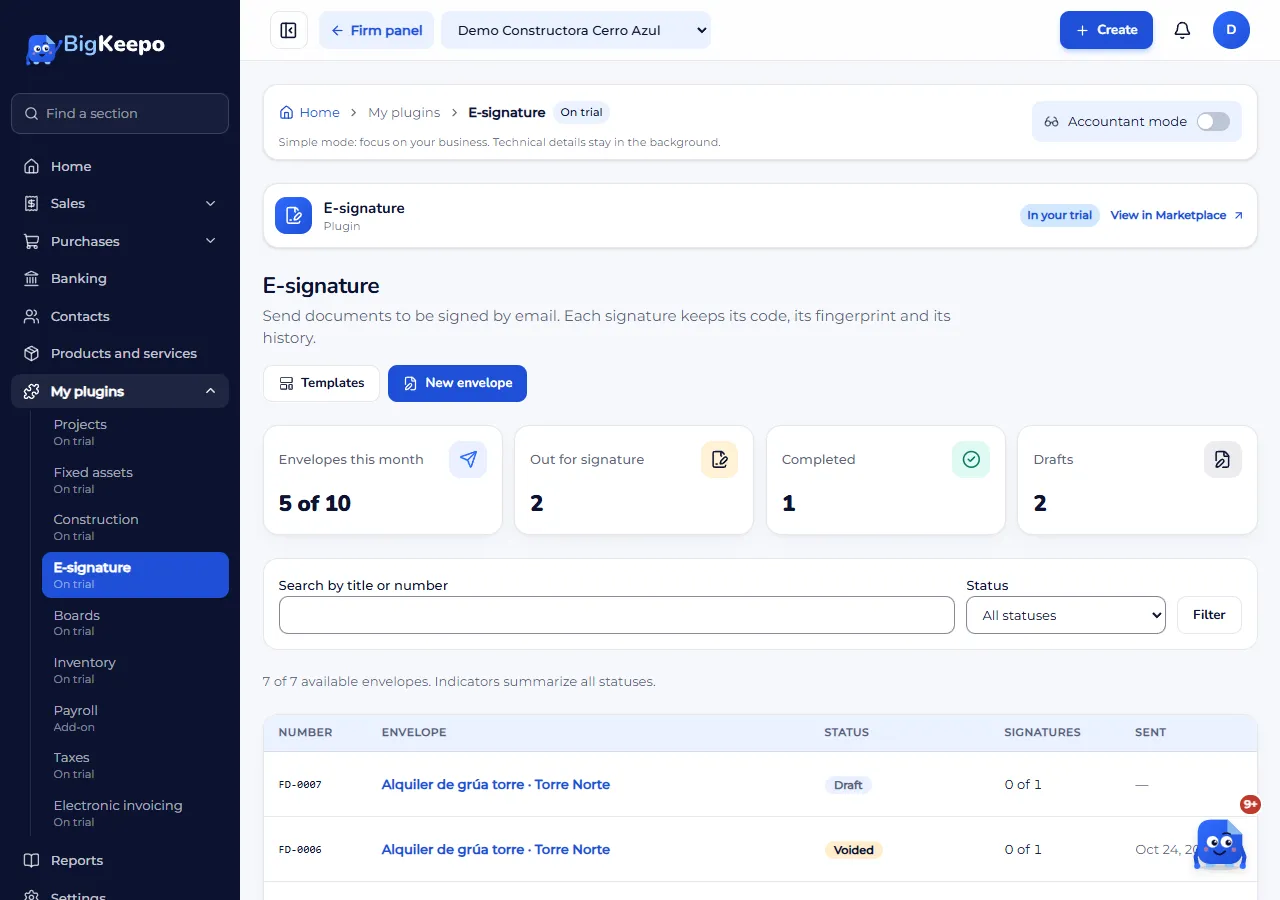
Have the PDF at hand (up to 4 MB per file, without a password) and the name and email of each person who signs. Envelopes are counted each month: at the top of the panel you see Envelopes this month, for example "5 of 10".
Steps
Open My plugins › E-signature. Here you see all your envelopes with their Status and how many signatures they have. Click New envelope.
Write the Title and, if you want, a Message for signers. Choose the Signing order: All at once or In order. Check the Days to sign and the Email language. Click Create and continue.
In the draft, open Add a PDF, choose the file and click Upload. You can upload up to 10 files.
Under Recipients, open Add recipient. Write the Name and Email, and under Role choose Signs or Gets a copy. If the order is by steps, set the Step. Click Add. Repeat for each person.
Open Where each person signs. Choose Who and the Field (Signature, Initials, Name, Date, Text or Checkbox) and tap the page where it goes. Drag it to move it. It saves by itself: you will see Saved.
If something is missing, the panel says Before sending, add: and lists what is pending. Each person who signs needs a Signature field. When nothing is missing, click Send.
You will see "Sent. Each person received their link by email." The envelope moves to Out for signature.
What the signer sees
The signer opens the link in their email and asks for their code: a 6-digit code arrives in their email and expires in 10 minutes. Then they agree to sign electronically, draw or type their signature and click Sign and finish. If they do not want to sign, they click Decline and write the reason.
If you turned on Allow passing the signature to someone else, the signer can pass it on, and the history records it.
Follow the progress
Open the envelope to see each person's status: Pending, Notified, Opened, Signed or Declined.
Click Remind next to the person whose turn it is to send another email.
Click Sign in person if the person is with you and will sign on your device.
If you asked for attachments with Request attachments (for example, an ID), you download them from the recipient's list.
Expected result
When everyone has signed, the envelope moves to Completed. BigKeepo seals the final PDF and emails it to everyone. You download it with Signed (or the Original) and can download the Audit trail (CSV). Under Tamper-evident history you see each step with its date and fingerprint, and the Chain intact notice if nothing changed.
E-signature keeps the name, validated email, date and time, IP address and the document's fingerprint. If a document requires a notary or another formality in your country, check with your lawyer.
If something goes wrong
The Send button is not active: read the list under Before sending, add:. Usually the PDF, a person who signs or their Signature field is missing.
It says "The file is not a readable PDF": if the PDF has a password, remove it and upload it again. Also check that it is under 4 MB.
It says "You have used this month's envelopes": choose a package with more envelopes in the Marketplace.
You made a mistake in an envelope already sent: open the envelope and click Correct the envelope. It is voided and an identical draft opens. Anyone who already signed must sign again.
You no longer want it signed: click Void this envelope, write the Reason and confirm with Void. The links stop working and those who already received it are notified.
You want to throw away a draft: click Discard.
Related articles
Was this helpful?