
Help topics
Create your first board
Create a board for any process in your company, choose its stages and move the work from one stage to another.
What it is for
A board follows any process that goes through stages: support, maintenance, hiring. Each row moves from one stage to another and you see at a glance where each thing stands.
Before you start
Think about the stages your process goes through. You do not have to get them right the first time: you change them later in Settings.
Steps
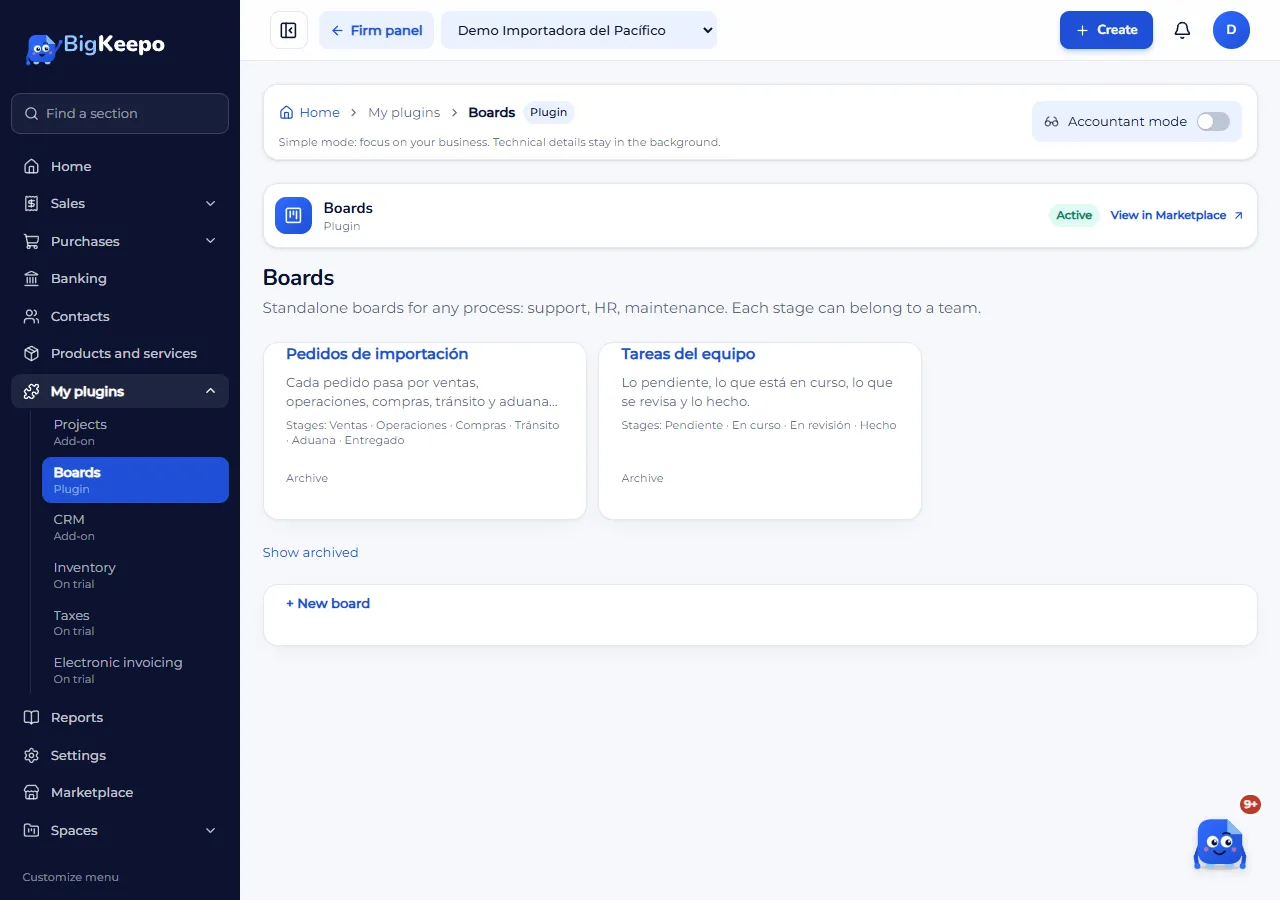
Open My plugins › Boards. Each board is a card with its name and its stages. The screenshot shows a company with two boards, Import orders and Team tasks, and + New board below. If you have none yet, you will see "No boards yet".
Select + New board.
Type the Name. If you wish, choose a Color and write a Description.
Under Template, choose Blank (three stages: To do, In progress and Done, with no fields) or an example: Import orders, Team tasks, Support or Hiring. Each example shows its stages and its fields.
Select Create board. You see "Board created." and the board opens.
In a column, type in New row and select the + button (Add row). In the Table view, select Add row.
To move a row forward, drag it to another stage. On a phone, use Move to…. To open its record, select its title.
To change the stages, select Settings at the top right. Under Stages you can type their names, move them up or down, remove them and use Add stage. Finish with Save stages.
Each board can be seen as Board, Table, List, Calendar, Gallery, Timeline and Workload. To automate notices, see Automatic rules.
Expected result
The board appears in the list with its stages.
Each row shows in its stage and can be moved or opened.
If you no longer use a board, select Archive: its rows stay saved. With Show archived and Show again you bring it back.
If something goes wrong
You do not see + New board: your role cannot create boards, or the company does not have the plugin. Without the plugin, the screen says "Creating and changing boards requires the Boards plugin" and offers See the plugin.
It says "That stage has rows. Move them before removing it": move the rows to another stage and remove it again.
It says "Two stages have the same name": rename one of them.
It says "Before moving to (stage), fill in: (fields)": that stage asks for data. Open the row, fill it in and move it again.
A board does not appear: try Show archived; you may have archived it.
Related articles
Was this helpful?