
Help topics
Add a customer
Create a contact as a customer, with their email and payment terms, to use on invoices and quotes.
What it is for
Customers and vendors are saved as Contacts. One contact can be a customer, a vendor or both. With a customer saved, their invoices and quotes fill in on their own.
Before you start
Have the customer's name at hand and, if you are going to invoice them, their email.
Steps
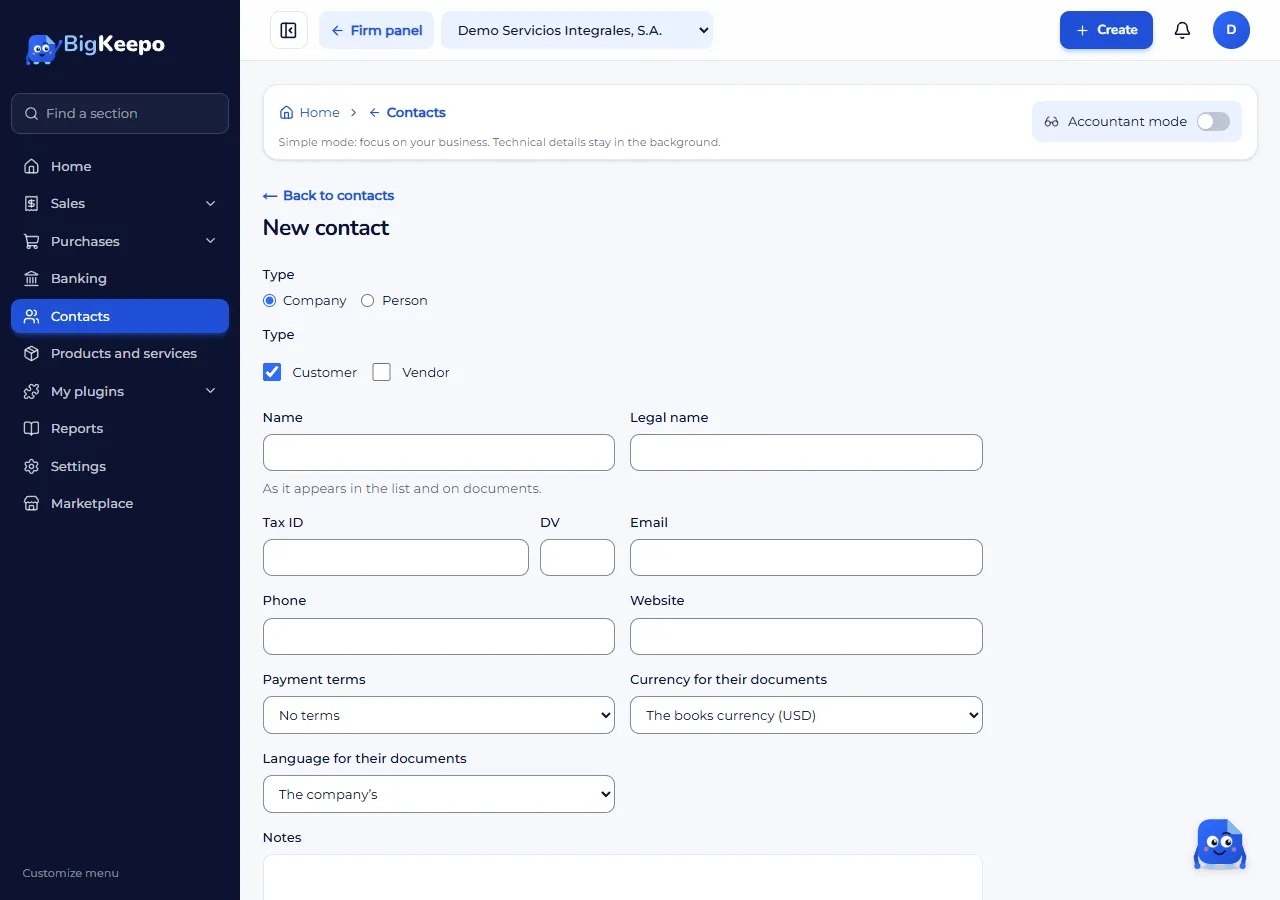
In the menu, open Contacts and select New contact.
In Type, choose Company or Person.
Check Customer, Vendor or both. You need to check at least one.
Enter the Name: it is how they appear in the list and on documents. If the customer is a company, you can also fill in the Legal name.
Fill in what you have: Tax ID, Email, Phone and Website.
Choose the Payment terms if you give them credit, the Currency for their documents and the Language for their documents. Your customer will receive their documents in that language.
If you want, write Notes and add their address with Add address.
Select Create contact.
Expected result
The contact appears in the Contacts list, and on their page you see their details and the New invoice and Receive payment buttons.
Change or deactivate a contact
On their page, select Edit to change their details. If you no longer work with them, select Deactivate contact: they stop appearing when you choose a customer, but their earlier invoices are kept. To use them again, select Reactivate contact.
If something goes wrong
It says «Mark whether it is a customer, a vendor or both»: check one of the boxes under Type.
It says your role does not allow this change: ask an administrator to do it. See Invite your team.
Related articles
Was this helpful?