
Help topics
Create and send a quote
Prepare a quote, send it, note whether the customer accepts it and turn it into an invoice.
What it is for
A quote tells your customer how much it will cost. It does not count in your reports: it only gets its number when you mark it as sent. When the customer accepts, you convert it into an invoice with one click.
Before you start
Have the customer saved, and what you are going to quote, if you use products and services.
Create the quote
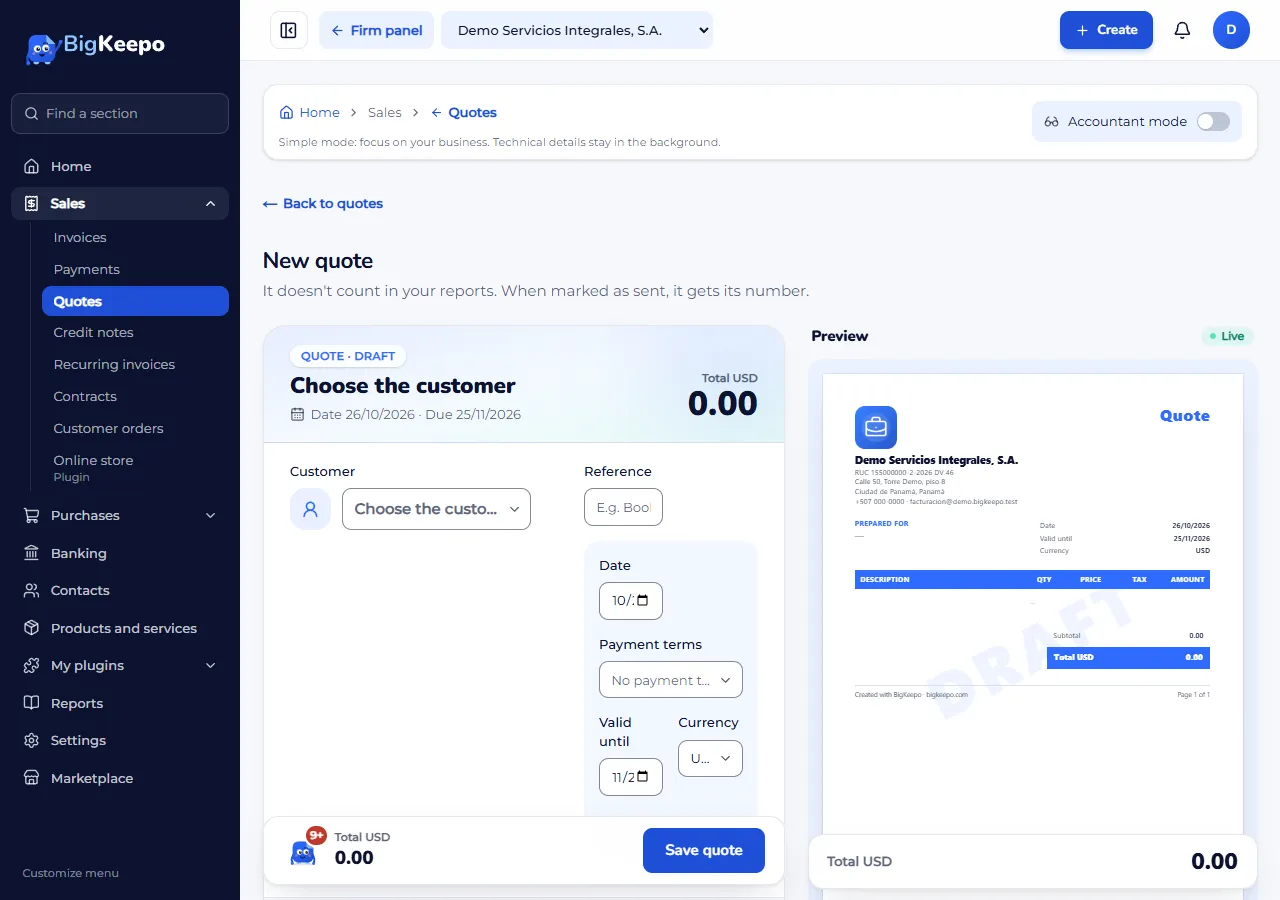
Open Sales › Quotes and select New quote.
Choose the Customer. Check the Date and Valid until; enter a Reference if it helps.
Add the lines: product or detail, quantity, price and tax.
Select Save quote. It is saved as a Draft. On the right you see the Preview of the document.
Send it
On the draft, select Send, check the email and send it. If you delivered it another way, select Mark as sent (without sending).
The quote gets its number and becomes Sent.
To share it another way, use Link for the customer and select Create link. Your customer sees it and downloads the PDF without creating an account. The link is shown only once: copy it with Copy. To close it, select Revoke link.
Note the customer's answer
If they accept, select Record acceptance and, if you want, enter Accepted by (optional). It becomes Accepted.
If they decline, select Record decline and enter the Reason (optional). It becomes Declined.
If the Valid until date passes with no answer, it becomes Expired.
Convert it into an invoice
Open the quote and select Convert to invoice.
Confirm with Create the draft invoice. It is created with today's date and the same lines.
Check the draft and issue it. The quote becomes Invoiced.
If something goes wrong
It says «The customer already decided. This quote cannot be edited.»: an accepted or declined quote cannot be changed. Make a new one.
You want to delete a draft: select Discard draft and confirm with Yes, discard.
It says your plan does not include sales: see Your plan and your billing.
Related articles
Was this helpful?