
Help topics
Manage your condominium
Build your towers and units, note who owns and who pays, set up the fees and issue the notices for each month.
What it is for
It brings together the towers, the units, their owners and tenants, and the fee for each month. This is a getting-started guide: it covers how to get everything ready and how to charge the first month.
Before you start
If you want the notices to reach accounting, review your chart of accounts and have a bank or cash account to record payments.
Your role must allow managing units. If you do not see a button in this guide, ask whoever manages your company.
Steps
Open My plugins › Condominiums. At the top there are tabs: Units, Billing, Delinquency, Common areas, Repairs, Gatehouse, Voting, News, Fees and Rules.
In Units, select Build with the assistant. Answer What will you create? (for example, Apartment tower), the Name, the floors and the units per floor, and how they are numbered. Under Area and shares, choose Split equally, Split by area or Leave as is. On the side you see the Preview. When you finish, select Create with the number of units; you get the message "Done. The building and its units were created."
Back in Units, check each tower: its drawing and the table with Unit, Type, Coefficient, Area, Owner, Pays and Month fee. If you prefer to do it by hand, use New tower and New unit, at the bottom of the screen.
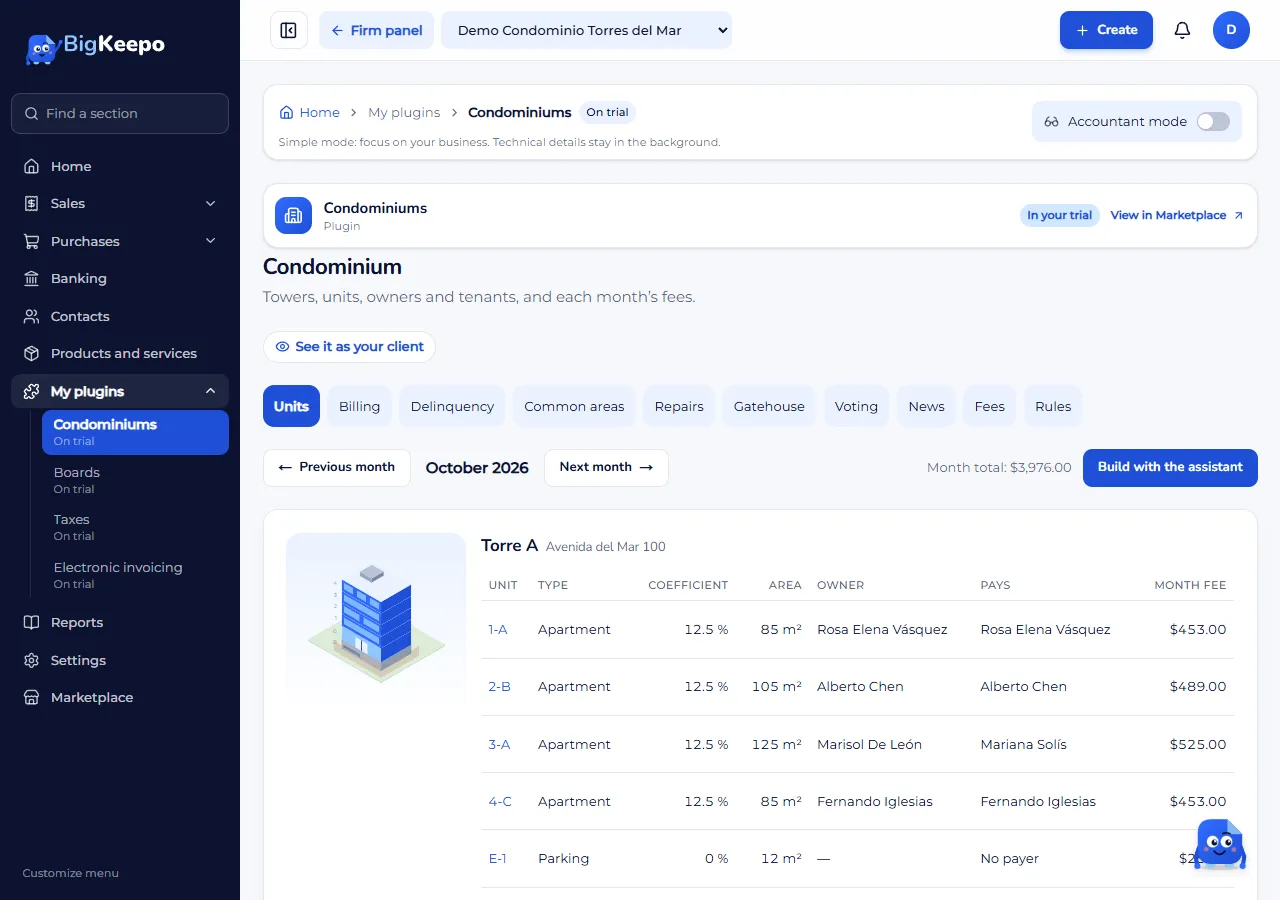
Check the coefficients. Those of the active units must add up to 100 %; if they do not, the screen shows a warning with the total. To fix one, open the unit, expand Unit details, change Coefficient (%) and select Save.
Note who lives in or owns each unit. Open the unit and, under Owners and tenants, expand Add an owner or tenant. Choose a Contact or A new one (type the name), set whether the person Is Owner or Tenant, answer Pays the fees? and select Add. Only the person who pays receives notices. If you enter their Email, that person signs in to MiniKeepo and sees their account statement and the news.
Open Fees and create the concept you charge each month. At the end of the list, select Edit on the blank block, enter the Name, choose How it is charged (for example, Fixed fee: the same amount per unit), the Amount, the Type (Ordinary or Extraordinary), From month (and, if you want, To month) and Which units (none checked = all). Select Add concept.
Open Rules and select Edit on How this condominium collects fees. There you choose How the fee is charged, the Fee due day, the Grace days, the Late fee (%) and the Reserve fund. Save with Save.
Open Billing. Choose the month, check the Issue date and select Issue notices. One notice is created for each unit that has a payer. At the top you see Issued, Collected and Outstanding.
When an owner pays, go down to Record a payment: choose the unit, the Payment date, the Amount, Deposited to, the Payment method and a Reference, and select Record payment. A receipt is issued and the payment covers the unit's oldest notices first. If the resident reported their payment from their app, it appears at the top with Confirm and Reject.
Expected result
Each tower shows its units with owner, who pays and the month fee. In Billing you see how much you issued, how much you collected and how much is left, and each unit has its Account statement.
If something goes wrong
A unit says "No payer": it does not get a notice until you add a person with Pays the fees? set to Yes. In Billing you will see how many units are missing one.
It says "To register someone with an email (they get into your app), first complete your app: logo, tagline and color, in Settings": in Rules, expand Resident portal appearance and fill in those details.
It says "The chart of accounts has no accounts receivable account": review your chart of accounts.
It says "First create a bank or cash account in the chart of accounts": without that account you cannot record payments.
It says "The payer is not marked as a customer. Mark them in Contacts": this happens when the fee is charged as a sales invoice. Mark them as a customer and try again.
You issued a notice by mistake: in Billing, select Void, enter the Reason and confirm with Void. If it already has payments, void the payments first.
You want to see what the resident sees: select See it as your client, above the tabs.
Related articles
Was this helpful?