
Help topics
Track your sales opportunities in the CRM
Record a deal, plan its follow-up, move it through the stages and close it as won or lost.
What it is for
The CRM follows every possible sale, from the first call to closing. Each card is a sale, not an invoice. You see how much is at stake, how much you expect to win and what to do today.
Before you start
Have at hand the name of the interested person or company and what they need. If they are not a customer yet, that is fine: you can record them as a lead when you create the deal.
Steps
Open My plugins › CRM. In Sales in progress you see four summaries at the top (In the pipeline, Expected to win, Stalled and No next step) and, below, one column per stage.
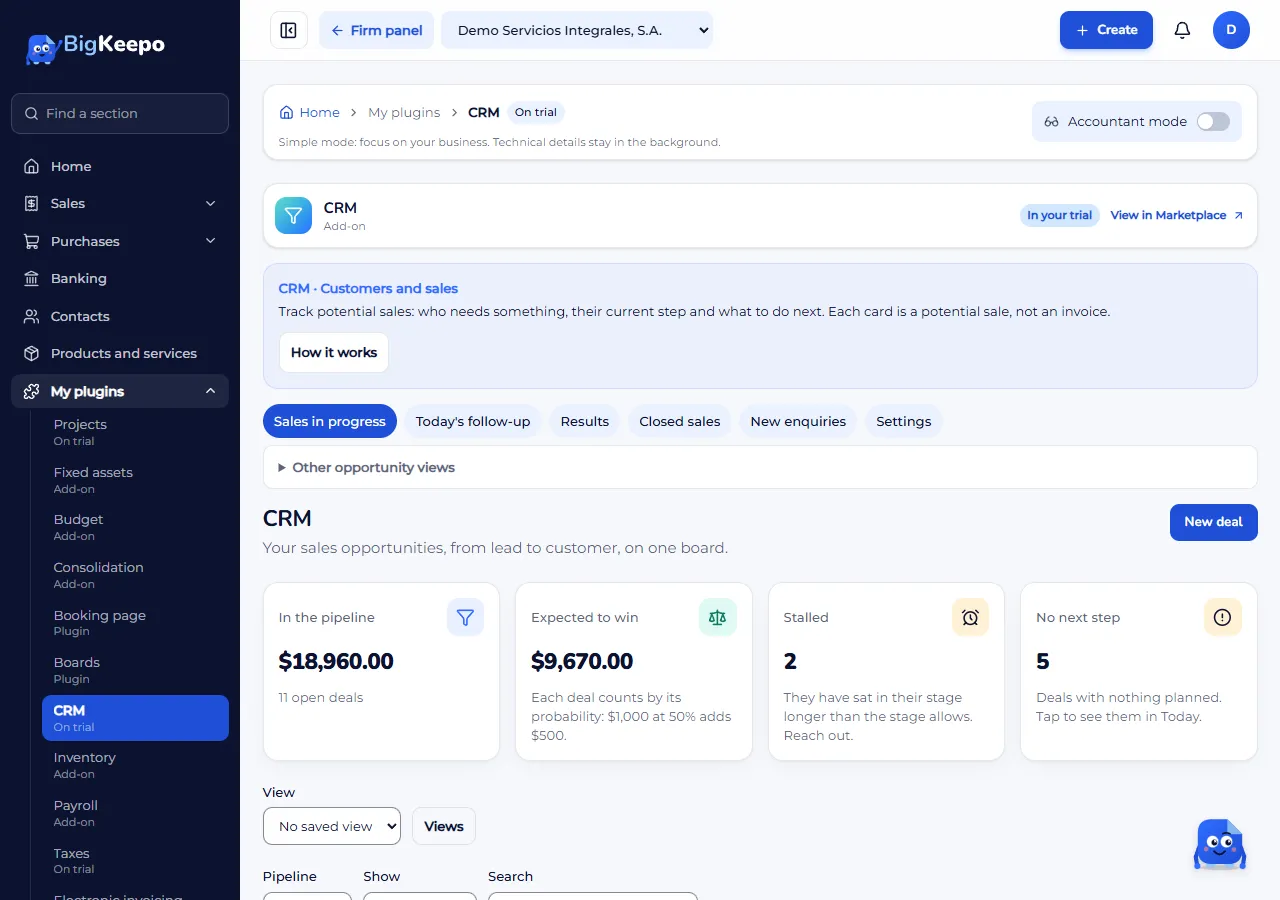
Select New deal.
Type the Title (what will be sold) and search for the Customer or lead. If it does not exist, type the name and choose Add: it becomes a lead.
Choose the Owner, the Pipeline and the Stage. Enter the Amount and, if needed, the Currency and the Expected close. In Notes write anything you want to remember.
Select Save. The card goes to the end of the stage you chose and its record opens.
In the record, select Plan a follow-up. Choose the Type (Call, Meeting, WhatsApp, Email, Note or Task), type What, the Day and the Time, and select Plan. The deal no longer counts under No next step.
To move the sale forward, go back to Sales in progress and drag the card to another stage. On a phone, use Move to….
When it ends, close it. In the record select Won, or drag the card to Won or Lost (they appear at the bottom while you drag). When you mark it Lost, choose the Reason and write a Note: it helps you improve.
When the customer asks for a price, select Create quote in the record. Continue with Create and send a quote.
Expected result
The deal appears in its stage, with its amount and its next step.
When you mark it as won, the contact becomes a customer.
Won and lost deals stay in Closed sales. To change one, select Reopen in its record.
Today's follow-up shows what is overdue, what is due today and what is due this week.
Winning a deal is not invoicing or collecting it: the invoice and the payment are handled in Sales.
If something goes wrong
You do not see the New deal button: your role cannot create deals. Ask whoever manages the company.
It says "Before moving to (stage), fill in: (fields)": that stage asks for custom data. Select Open the deal, fill them in and move the card again.
It says "The deal is already closed. Reopen it to change it": select Reopen in its record.
A card shows "No next step" or days without moving: plan a follow-up or move the card. If you want BigKeepo to notify you on its own, see Automatic rules.
The customer does not show up in the search: it may not exist yet. Type the name and choose Add.
Related articles
Was this helpful?