
Help topics
Create your first invoice
Create an invoice, issue it and send it to your customer by email or with a link.
Create the invoice
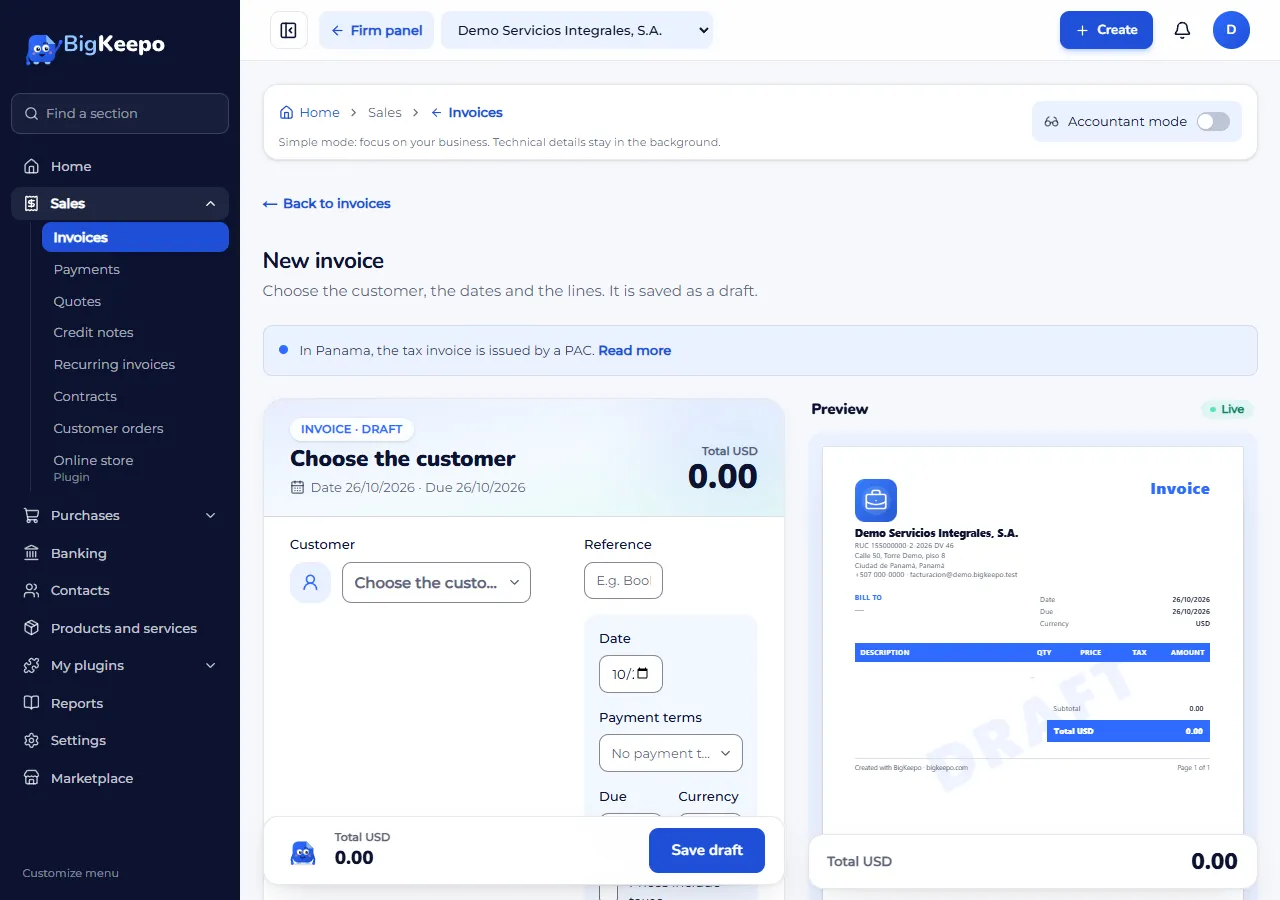
In the menu, open Sales › Invoices and select New invoice. You can also use Create › Invoice.
In Customer, choose your customer. If they are new, type their name and select Create «…»; fill in their details and select Save and select.
Check the Date and the Payment terms. The terms set the Due date.
Add what you sell. On each line, choose an item or type the detail, and enter the Quantity, Price and Tax. For more lines, select Add line.
If you want, write a Note to the customer.
Select Save draft. The invoice is saved as a Draft, with no number yet.
Issue the invoice
A draft does not count in your reports. To make it count:
Open the invoice and select Issue invoice.
Confirm with Yes, issue.
The invoice gets its number and becomes Issued. BigKeepo records the sale in your books for you.
Send it to your customer
On the issued invoice, select Send by email.
Check To, Subject and Message. Keep Attach the invoice PDF checked to send the file.
Select Send invoice.
To use another channel, such as WhatsApp, use Link for another channel and share the link. To save the file, select Download PDF.
Next step
When your customer pays, record the payment.
Was this helpful?